All too often, Mac users put off installing updates because of the bother of having to set everything up again afterward. We get it—you’re busy, and it can take time to relaunch apps, reopen documents, and repopulate Web browser tabs.
There’s no avoiding some downtime when installing a full macOS update, which is why we recommend starting such updates at the end of the day or before you leave for lunch. That’s why Apple introduced Rapid Security Responses, which generally install in just 3–4 minutes, including a restart if necessary.
But with a bit of setup, you can pick up where you left off before a restart within a minute or two. There are three settings that can reopen apps, documents, and folders, and all Web browsers have options that reload all previously open tabs.
Apps, Documents, and Folders
If you always want certain apps running or documents open, you can ensure they open at login. In macOS 13 Ventura, open System Settings > General > Login Items (shown below); in macOS 12 Monterey and earlier, look in System Preferences > Users & Groups > User > Login Items.
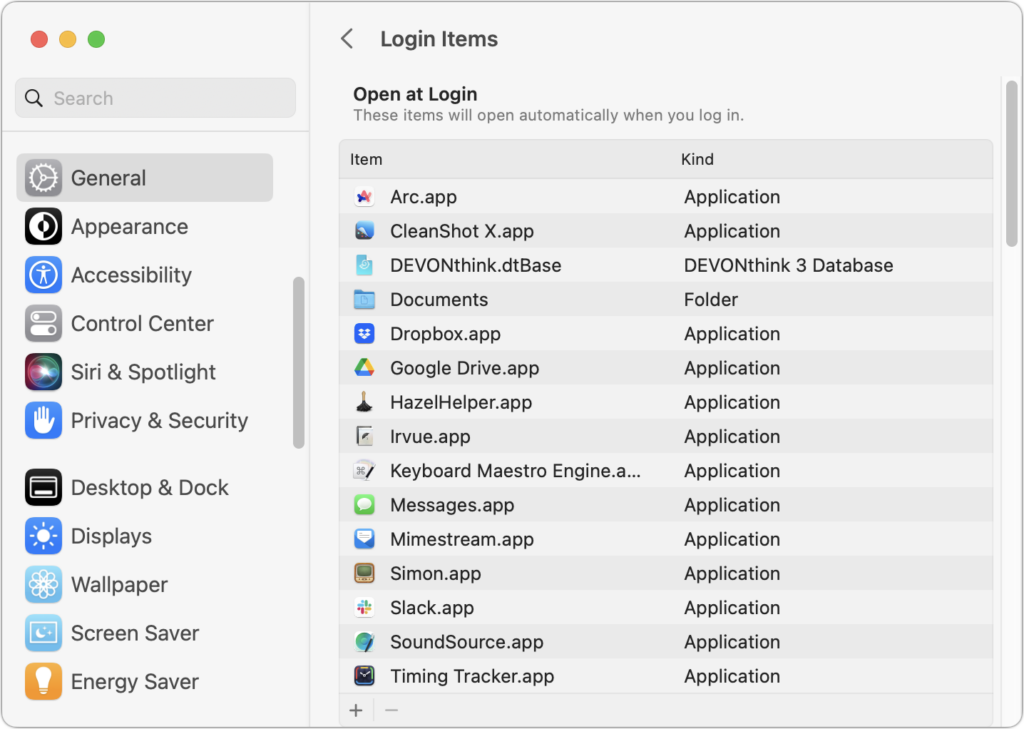
You can add apps, documents, and even folders to the Open at Login list. To remove an unwanted item, select it and click the – button. If there’s anything you don’t recognize, Control-click it and choose Show in Finder to see where it’s located.
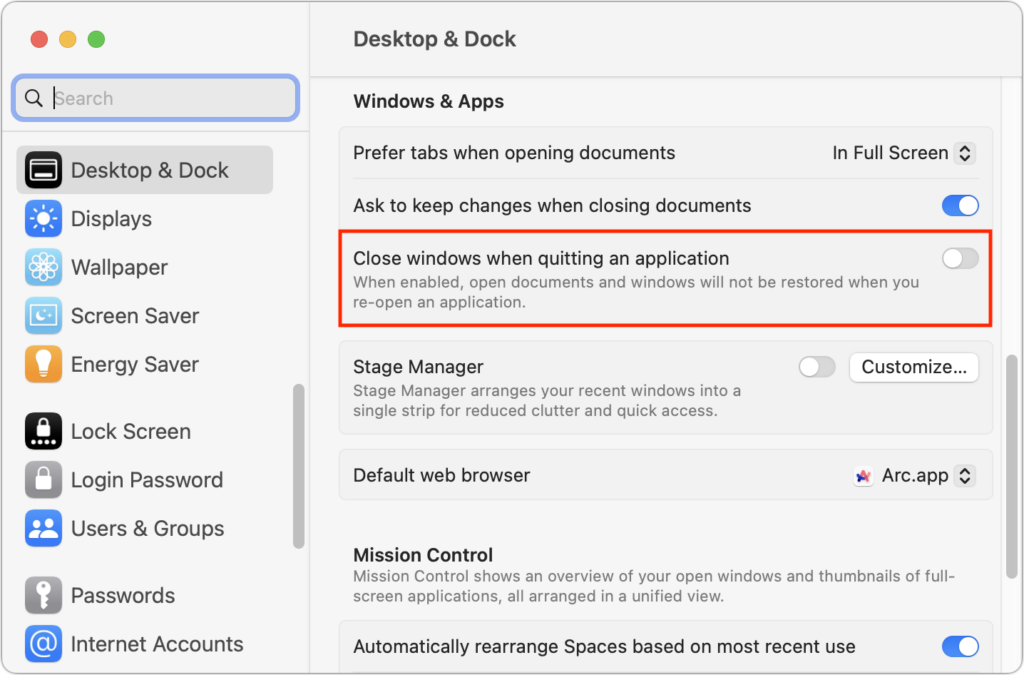
What if you have other apps or documents open that you want to return to immediately after relaunching an app? macOS offers another setting for that. In Ventura, look in System Settings > Desktop & Dock and scroll down to Windows & Apps. Deselect “Close windows when quitting an application” because reopening an app won’t restore its open documents and windows when that’s on. In Monterey and earlier, find this setting in System Preferences > General.
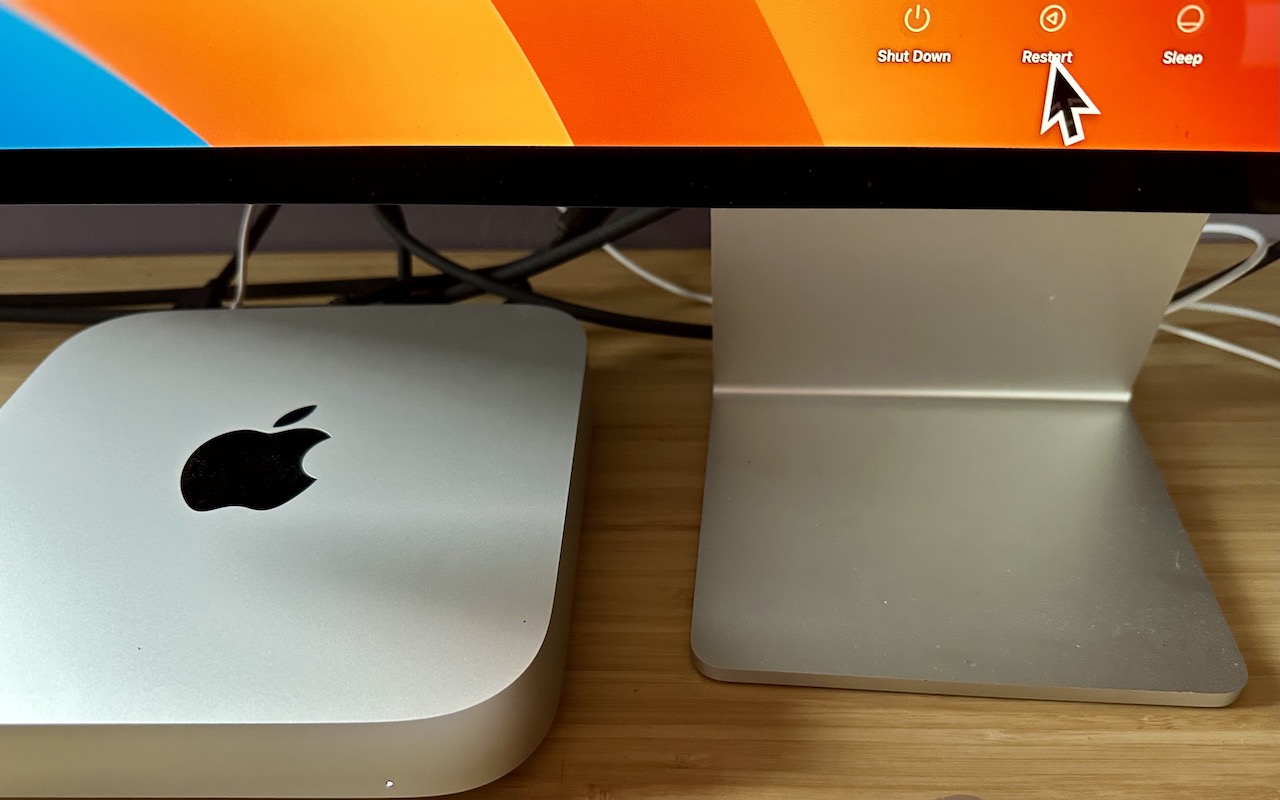
Choose Restart, Shut Down, or Log Out from the Apple menu to reveal the last and most important setting to ensure that your Mac environment is the same after a restart as it was before. In this dialog, select “Reopen windows when logging back in” and click Restart. macOS remembers this setting, so you shouldn’t have to select it each time.
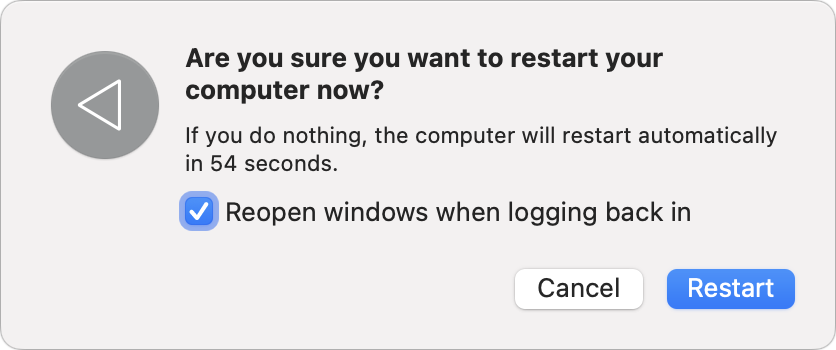
As a bonus, if your Mac crashes or shuts down unexpectedly, it should come back as it was before the crash.
Web Browsers
The macOS settings above should work for most apps, but Web browsers are a special case. Open tabs aren’t quite the same as documents, and you might or might not want all those tabs to come back after relaunching your browser. Control the session settings in these popular Web browsers with the instructions below:
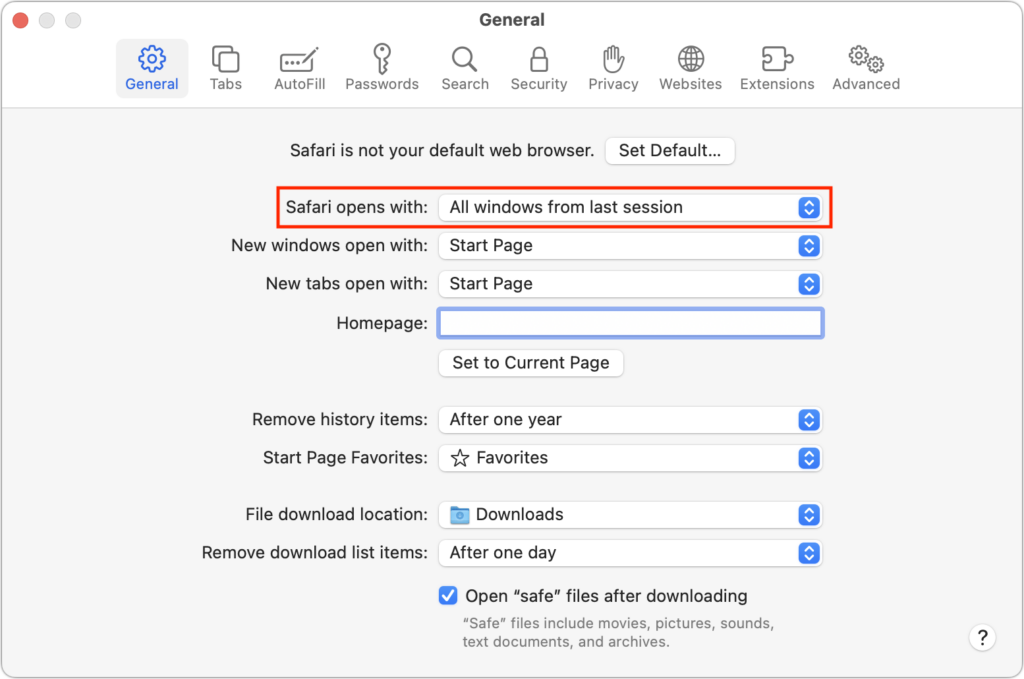
- Safari: Recent versions of Safari always open with windows (and tabs) from your last session, though you can choose whether that includes all windows or just non-private ones in Safari > Settings > General.
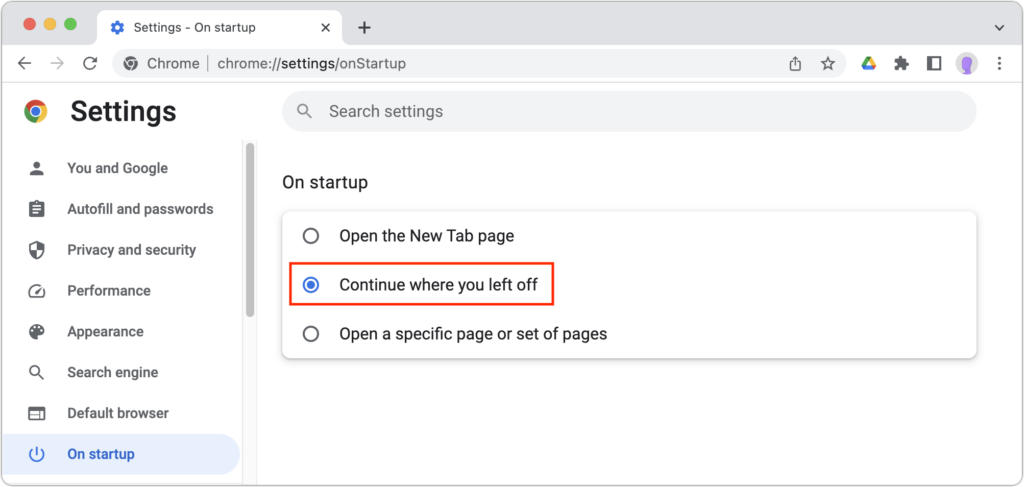
- Google Chrome: For Google Chrome, you have additional options, but to make sure your open tabs are restored after relaunching the app, choose Chrome > Settings > On Startup, and select “Continue where you left off.”
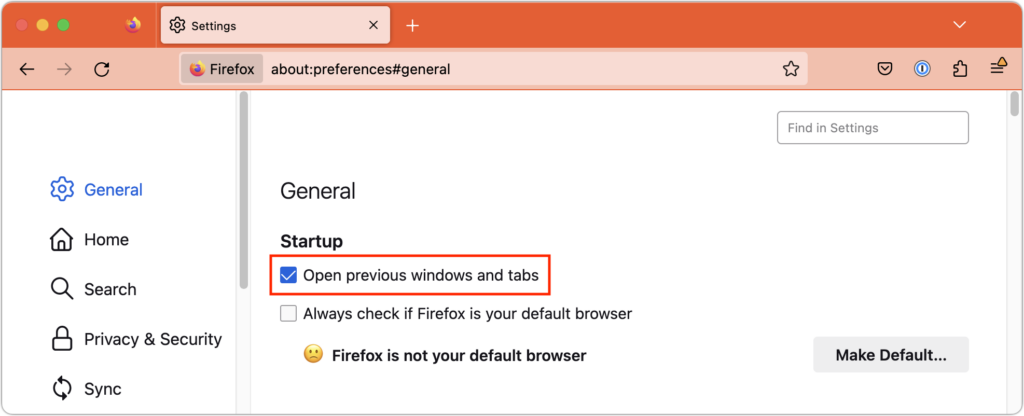
- Firefox: Mozilla’s browser puts its session settings front and center. Choose Firefox > Settings > General and select “Open previous windows and tabs.”
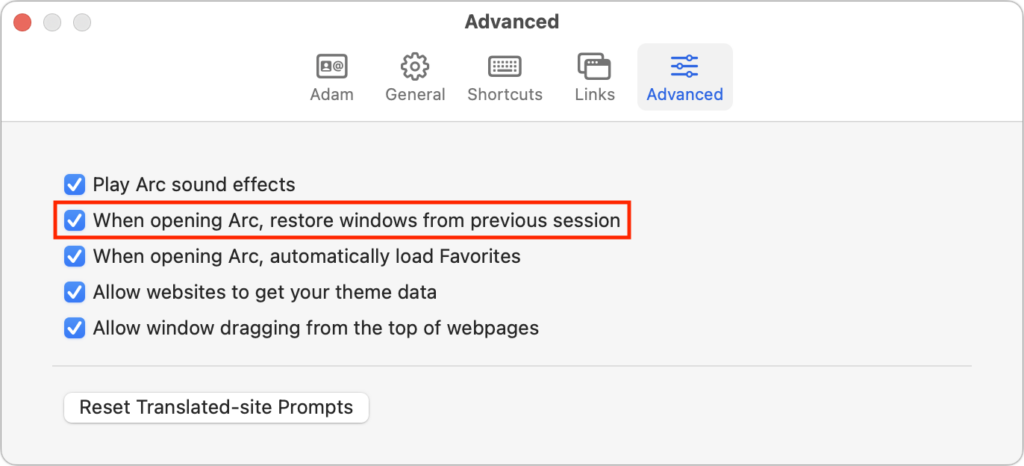
- Arc: The new browser Arc encourages users to set up workspaces containing pinned tabs, both of which persist across sessions. However, to ensure all your windows and regular tabs load after relaunching, open Arc > Settings > Advanced and select “When opening Arc, restore windows from previous session.”
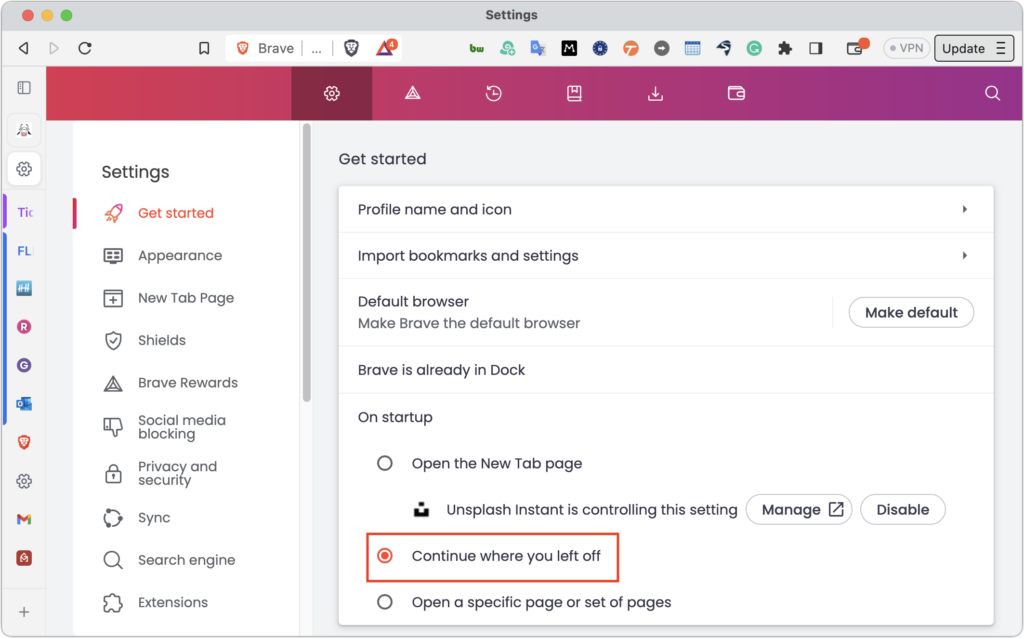
- Brave: As a Chrome-based browser, Brave offers a setting similar to Chrome but in a different location. Find it in Brave > Settings > Get Started.
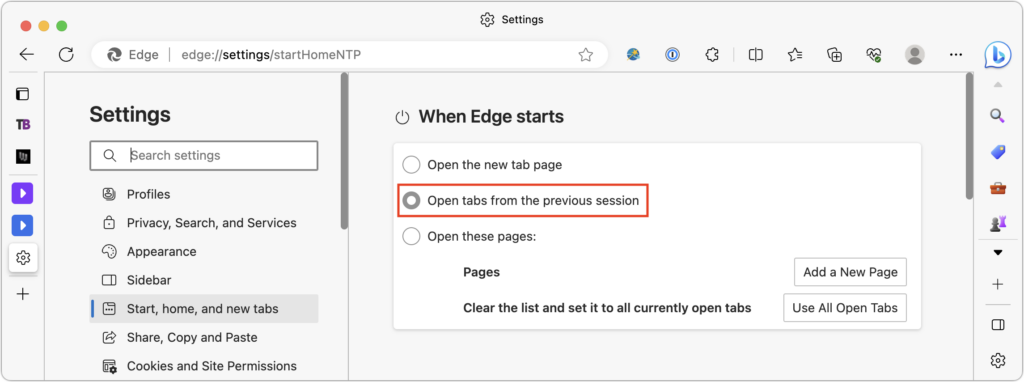
- Microsoft Edge: Although it is also based on Chrome, Microsoft Edge stores its session setting in a different location, with a different name. Choose Microsoft Edge > Settings > Start, Home, and New Tabs, and then select “Open tabs from the previous session.”
Between these macOS and browser settings, you can ensure that a restart presents the minimum interruption possible, such that when your Mac finishes restarting, all your apps, documents, windows, and browser tabs will be the same as when you left off.
(Featured image by Adam Engst)